Guide
Personal Calculator: Basic and Advanced modes, step by step
How to read the expression line, when to switch to Advanced, and a few habits that keep everyday sums right.
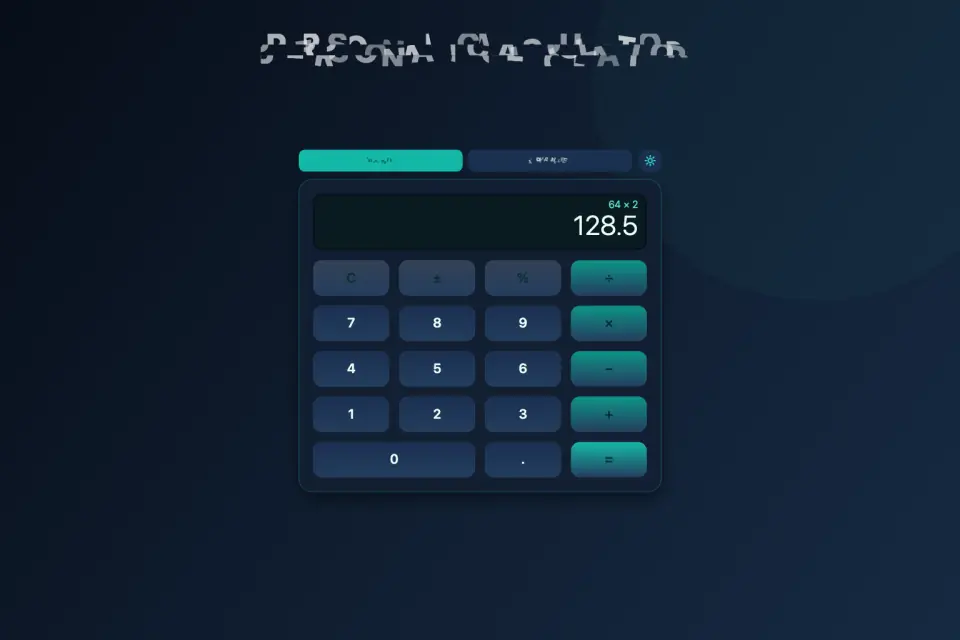
Personal Calculator is a plain, readable calculator: a teal keypad, a large display and nothing in the way. It runs in your browser and on Android, works offline after the first load and needs no account. Here is how to get the most out of it.
Getting started
Tap Start on the splash screen and you land on the keypad. The screen has two lines:
- the expression line on top shows what you are building, such as
48 + 12 ×; - the main display shows the current value.
Tap = to resolve the expression and keep calculating from the result.
Basic mode
Basic has what you need for daily sums: clear, sign toggle (±), percent, the four operations, a decimal point and equals.
- ± flips a number between positive and negative — handy when you move between amounts you owe and amounts you have.
- % is quick for discounts and tips. Different calculators treat percent slightly differently, so try it once on a sum you already know (10% of 200 is 20) to see how this one behaves before you rely on it.
- If the expression line still shows an operator from your last sum, press clear before starting a new one.
Advanced mode
Switch to Advanced when you need more. It adds, above the usual rows:
- ln and log (natural and common logarithms),
- √ and x²,
- 1/x (reciprocal),
- xʸ (powers),
- eˣ and absolute value.
The app remembers which mode you used last, so it opens the way you left it.
Settings
The gear holds soft background music, soft key sounds and the language (eight to choose from). Both sound switches are saved on the device, so a quiet session stays quiet next time.
Small habits for fewer mistakes
- Glance at the expression line before you press =; it catches a doubled operator or a missing digit.
- For multi-step sums, finish one step, press =, then continue from the result.
- Use Advanced only when you need it: Basic keeps the keys bigger and the pad simpler.
The layout fills the screen in portrait and landscape and rearranges itself when you rotate or resize. See it on the Personal Calculator page, or open it now.